UMA DASH Controls Guide
Learn the race inputs that matter — then confirm exact bindings in your in-game Settings.
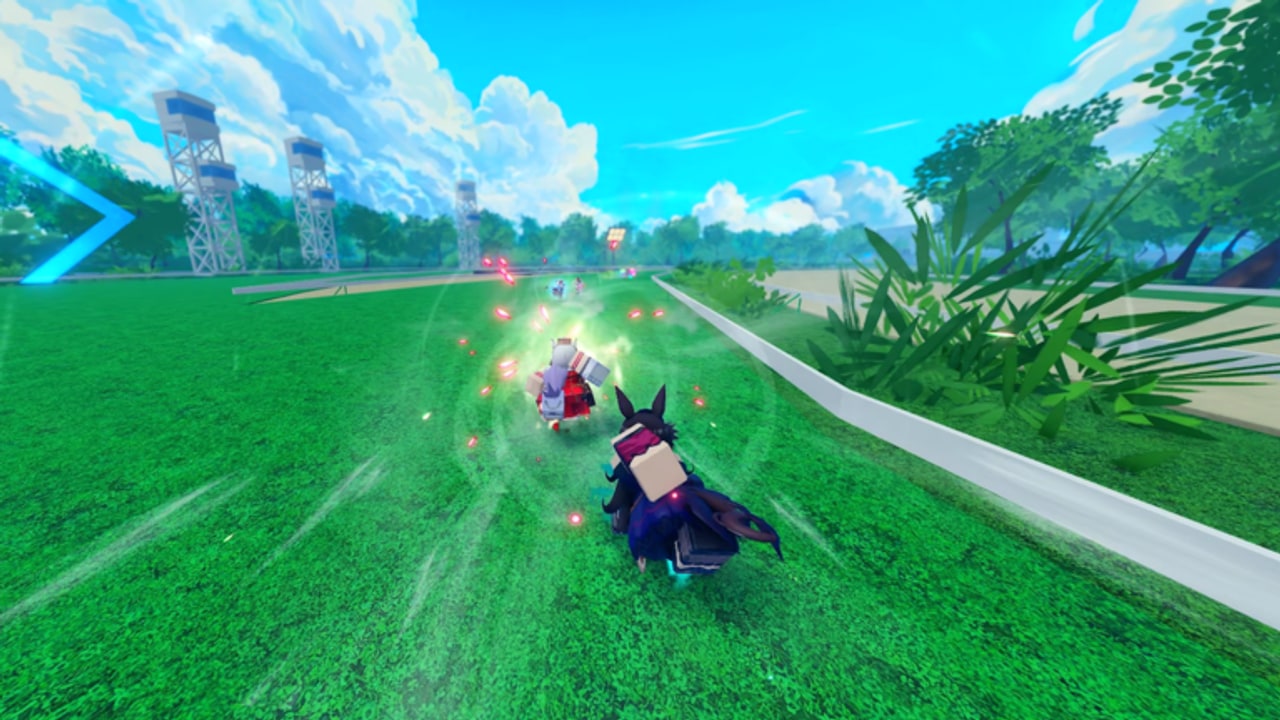
UMA DASH is a fast anime racer from Krampus Studios on Roblox. It supports Mobile, PC, and Console, and the skill ceiling sits less on memorizing a leaked key chart and more on firing the right tool at the right moment: movement, dash tools, perk triggers, abilities, and ultimates under pack pressure.
This guide is honest about what is publicly confirmed and what is not. Exact default keybinds for every platform are best verified inside the game’s own Settings menu (cogwheel, top-left). Patch [UPD 1.5] and future hotfixes can remap prompts. Use this page to understand what to bind and how to practice — then open Settings and lock your layout.
If you are brand new, finish Getting Started first. If codes still fail, fix that via How to Redeem before optimizing inputs.
Why controls matter in UMA DASH
The core loop is: equip an Uma, collect perks, shape a build, use abilities and ultimates, prestige, and climb leaderboards. Hidden alternate forms can appear when you prestige with the right Uma. None of that matters if you panic-mash cooldowns at the start line.
Races reward:
- Clean acceleration out of the gate
- Disciplined dash usage through mid-pack traffic
- Perk activation when the bonus actually converts into position
- Ability windows that create space, not chaos
- Ultimate timing near the finish — covered deeply in How to Win
Fifteen-player servers mean crowded lines. Input clarity separates podium finishes from mid-pack screenshots.
Open Settings and confirm your bindings
- Launch UMA DASH on your platform of choice.
- Click or tap the Settings cogwheel in the top-left.
- Locate control / keybind / accessibility options available in the current build.
- Note which actions map to movement, camera, dash, ability, ultimate, perk interact, and menu.
- Adjust sensitivity and any toggle-vs-hold options if offered.
- Run a private warm-up race (or a low-stakes public race) after every change — never remap mid-tournament tilt.
Because UMA DASH is in public beta, labels can shift after balance patches. After reading Updates, reopen Settings and re-confirm. Do not trust a months-old screenshot from a different Uma-themed Roblox game.
Platform notes
PC
PC usually offers the most precise camera and the easiest Settings navigation (important for code redemption too). Practice:
- Keeping fingers ready for ability and ultimate without releasing steer control
- Avoiding accidental menu opens mid-straight
- Using a consistent key cluster so dash and ability never share awkward reaches
If you use a controller on PC, pick one scheme and stick with it for a full session so muscle memory settles.
Mobile
Mobile players should:
- Enlarge or reposition on-screen buttons if the client allows customization
- Keep thumbs from covering critical HUD prompts
- Disable aggressive keyboard auto-correct when typing codes in Settings
- Practice ability taps during mid-race calm stretches before relying on them in photo finishes
Touch latency varies by device. If inputs feel delayed, lower graphics settings and test again before blaming the Uma.
Console
Console racers should:
- Learn which face / bumper buttons fire abilities vs ultimates in the current mapping
- Confirm how to open the top-left Settings with a controller cursor or shortcut
- Practice text entry for codes so you are not locked out of Codes Hub rewards
- Watch for aim assist or camera helpers if present — turn down anything that fights manual lines
Ability, perk, ultimate, and dash — what to train
Public materials describe UMA DASH around abilities, perks, ultimates, and aggressive race tools such as dash-style movement. Exact cooldown numbers and button glyphs belong in your live client. Train the roles:
Dash / burst movement
Use short movement bursts to:
- Escape a blocked inside line
- Close a gap when a rival wastes a cooldown early
- Adjust angle before a corner instead of drifting wide into traffic
Bad habit: dashing the moment the race starts every single time. Good habit: saving at least one responsive burst for contested mid-race or final approach.
Abilities
Abilities are your flexible tools — gap closers, defenses, or tempo swings depending on the Uma and build. Practice firing them when:
- You have a clear lane to convert the advantage
- A rival just spent their own defensive tool
- You need to stabilize after a bump instead of tilting into a second mistake
Perks
Perks shape the build more than a single button mash. Some may be passive; others may ask for an activation. Learn whether your equipped perks need a press or simply change how dash/ability feel. Full spending and synergy theory lives in Perks and Builds.
Ultimates
Ultimates are high-impact finishers. Many races are decided when someone pops an ultimate with a clean lane in the final stretch while others spent theirs at 50% distance. Bind ultimate to a deliberate key or button you will not brush accidentally. Then drill late-race discipline from How to Win.
Practice drills (15 minutes)
- Bind audit (2 min) — Open Settings, screenshot or note every race action.
- Dash economy (4 min) — Run a race using dash only three times on purpose.
- Ability callouts (4 min) — Say out loud why you pressed ability each time; if you cannot explain, you mashed.
- Ultimate hold (5 min) — Forbid yourself from ultimating before the final segment unless you are about to be boxed into last.
Repeat after any prestige or major perk change — new forms and builds can change how greedy you can be with cooldowns. See How to Prestige.
Accessibility and comfort
- Lower camera shake if it blurs finish timings.
- Increase UI contrast if perk prompts are easy to miss in bright tracks.
- Remap any action that fights your hardware (small keyboards, claw grip, tablet cases).
- Take breaks; beta sessions with ~2k concurrent peaks can tempt long grind blocks that destroy focus.
Controls checklist before a serious session
- Settings opened from top-left cogwheel
- Movement, dash, ability, ultimate, menu binds confirmed for this device
- No accidental overlap between ultimate and menu
- Sensitivity comfortable in a warm-up race
- Codes redeemed so Gold/Carats/Spins are available for build tweaks (Codes)
- One perk change planned — not five at once (Perks and Builds)
- Tier context checked if you swapped Uma (Tier List)
Common control mistakes
- Copying Uma Racing binds — Different game. Relearn in UMA DASH Settings.
- Remapping every death — Change one thing per session.
- Ignoring mobile button placement — Thumbs block your own prompts.
- Ultimate on a bump-prone key — Move it.
- Never rechecking after a patch — Updates can invalidate muscle memory.
Master inputs, then spend your brain on pacing and prestige timing. Controls are the foundation; builds and ultimates are how you convert that foundation into leaderboard climbs.
Frequently Asked Questions
Quick answers for UMA DASH racers.
What are the default UMA DASH keybinds?
Confirm them in the in-game Settings cogwheel (top-left). This guide avoids publishing unverified charts because beta patches can change labels across Mobile, PC, and Console.
Does UMA DASH support controllers and phones?
Yes. The game supports Mobile, PC, and Console. Practice your layout on the device you actually grind on.
Should I dash immediately at the start?
Not always. Save responsive movement tools for traffic and late-race corrections instead of spending everything at the gate.
Where do I change sensitivity?
Open the top-left Settings menu in UMA DASH and adjust any camera or control options available in the current build, then test in a warm-up race.
How do controls relate to prestige?
New Uma forms and builds after prestige can change how aggressive your cooldowns feel. Recheck binds and drill ultimate timing after each prestige.